

Pay Juuced, LLC

Zelle: office@juuced.com
GUIDE TO PROCESSING PAYMENT WITH Zelle®
Settling your invoices is now faster and more secure. Use this guide to set up your account and send payments directly to our team.
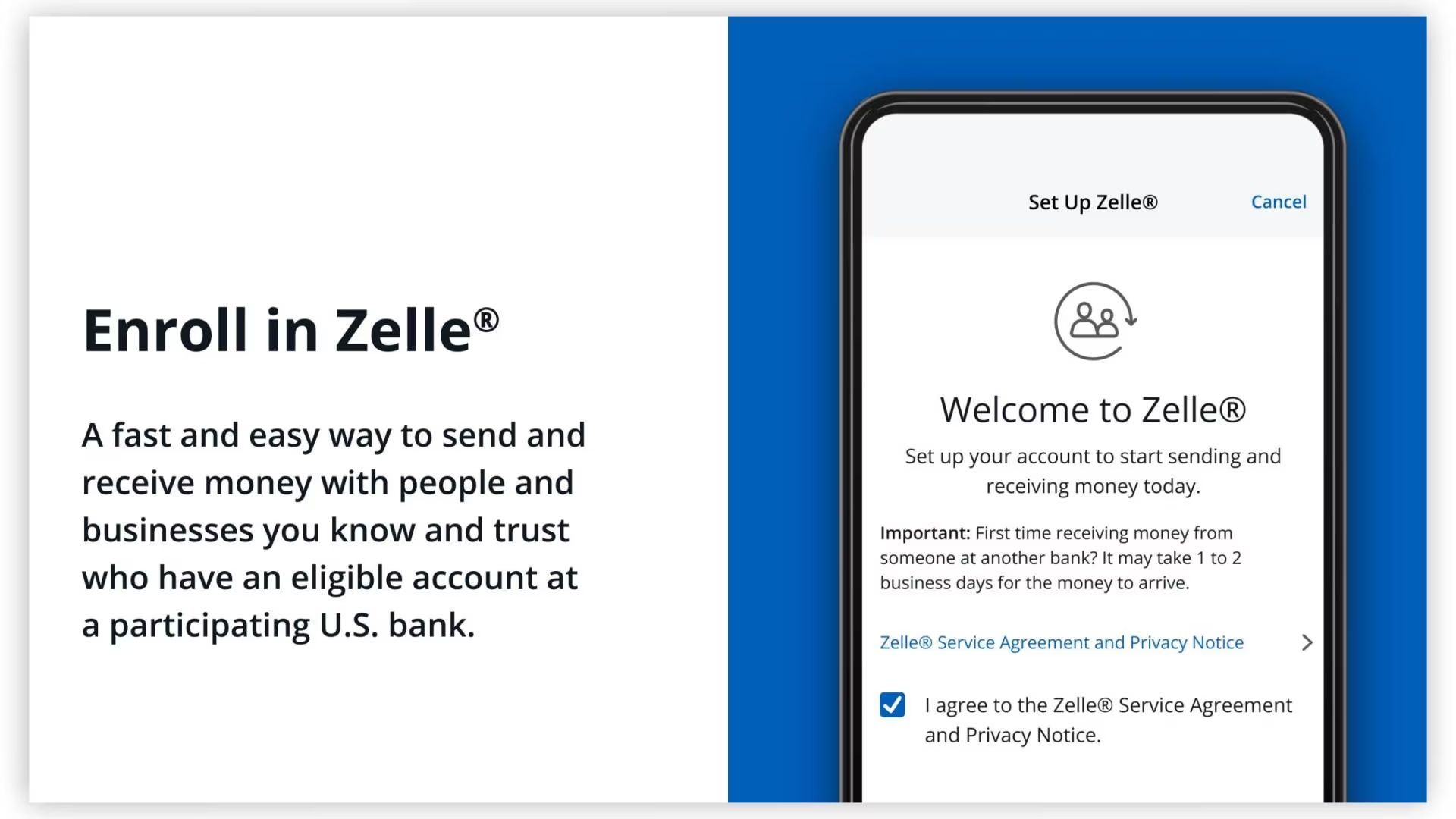
Step 1: Enrollment (One-Time Setup)
Most major banks (Chase, BofA, Wells Fargo, etc.) have Zelle already built into their mobile app.
- Log in to your banking app.
- Navigate to "Transfer & Pay" or "Send Money with Zelle®."
- Enroll using your email address or mobile number.
- Verify your account with the one-time code sent to your device.
Step 2: Sending Your Payment
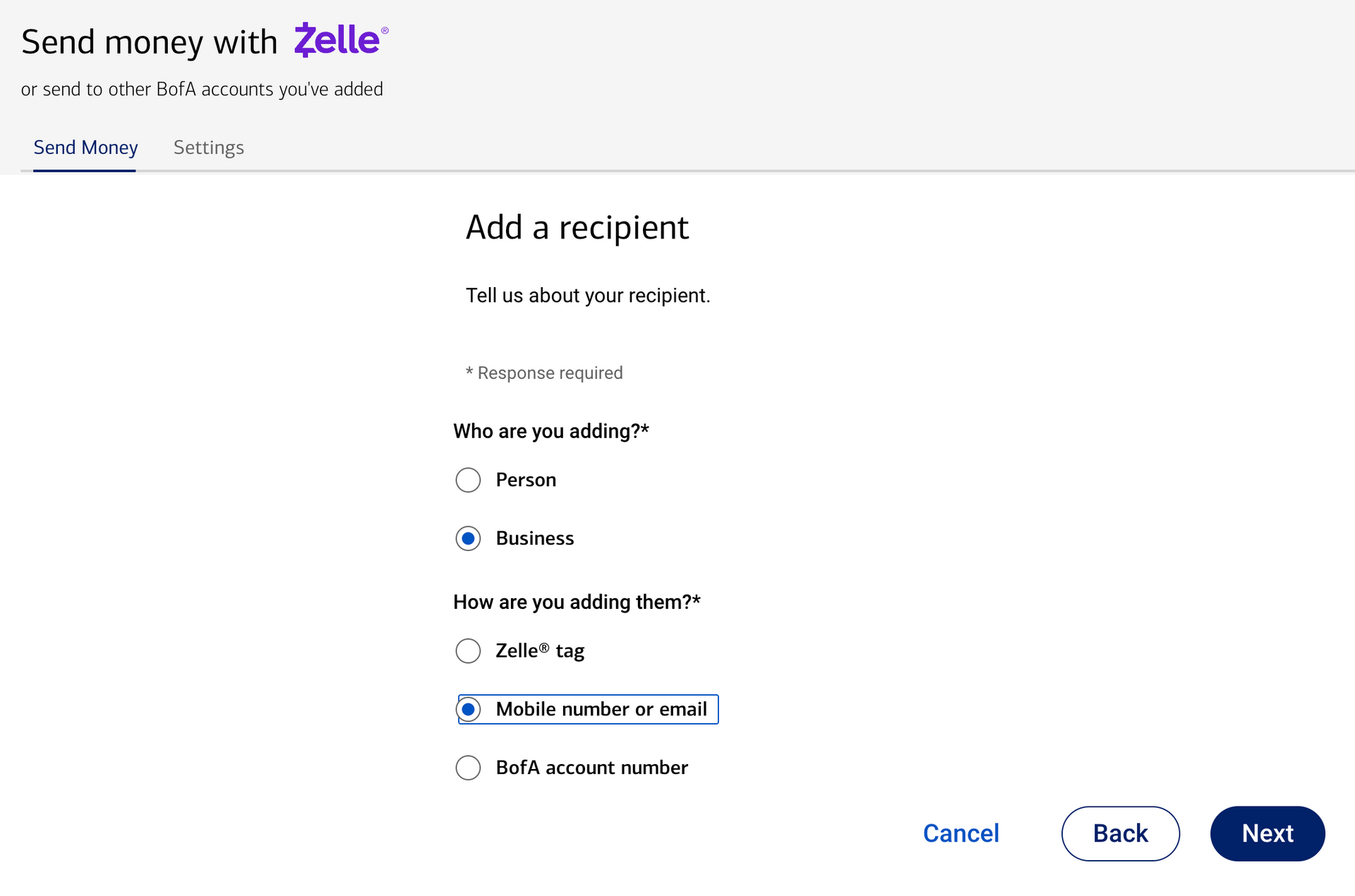
1. Select "Add Recipient": In your banking app, select the option to add a "Business" and select "Mobile number or email"
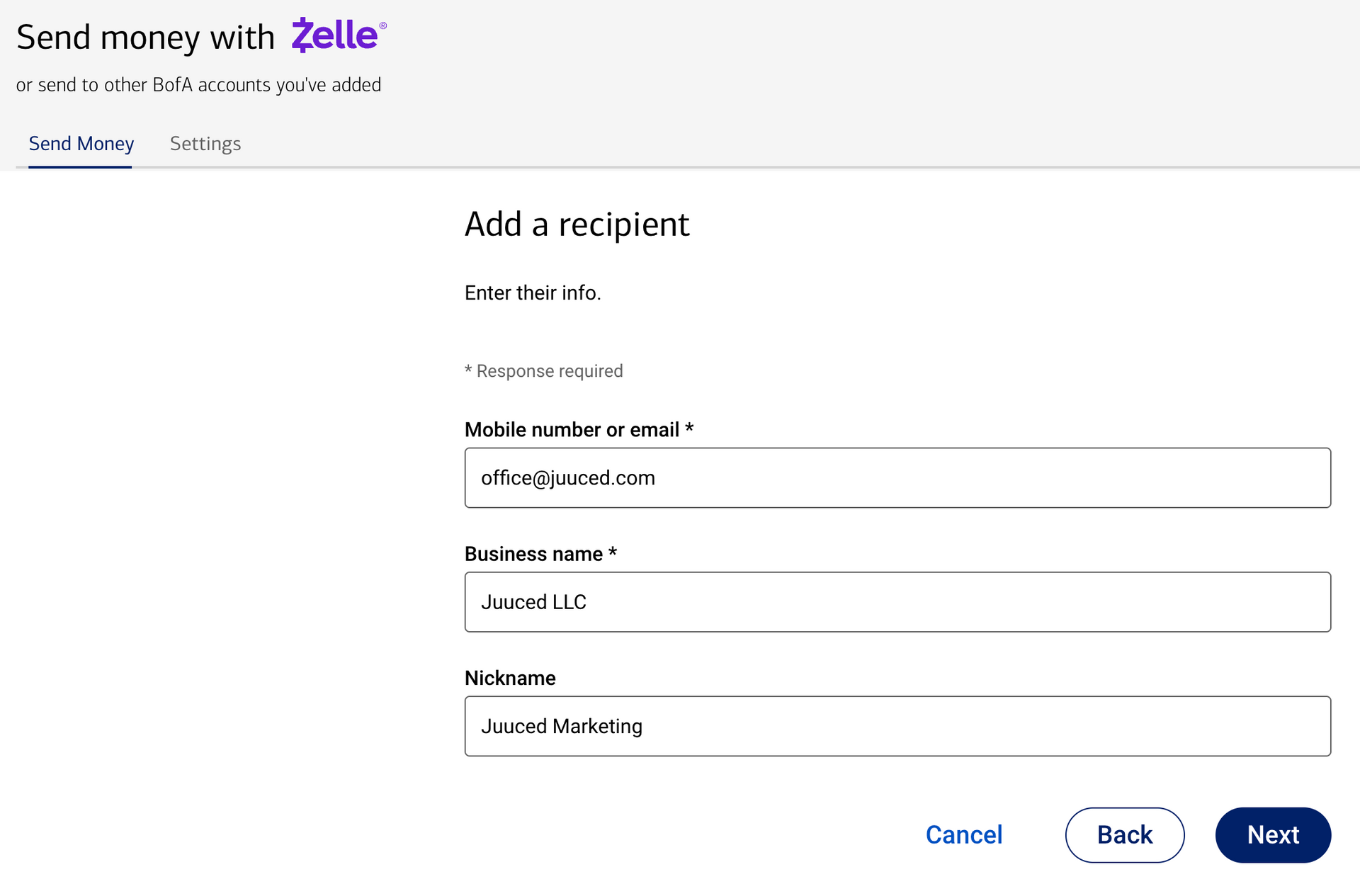
2. Enter
"office@juuced.com"
under the email, and
"Juuced, LLC"
under the Business Name. You Can Add "
Juuced Marketing
" as the nickname.
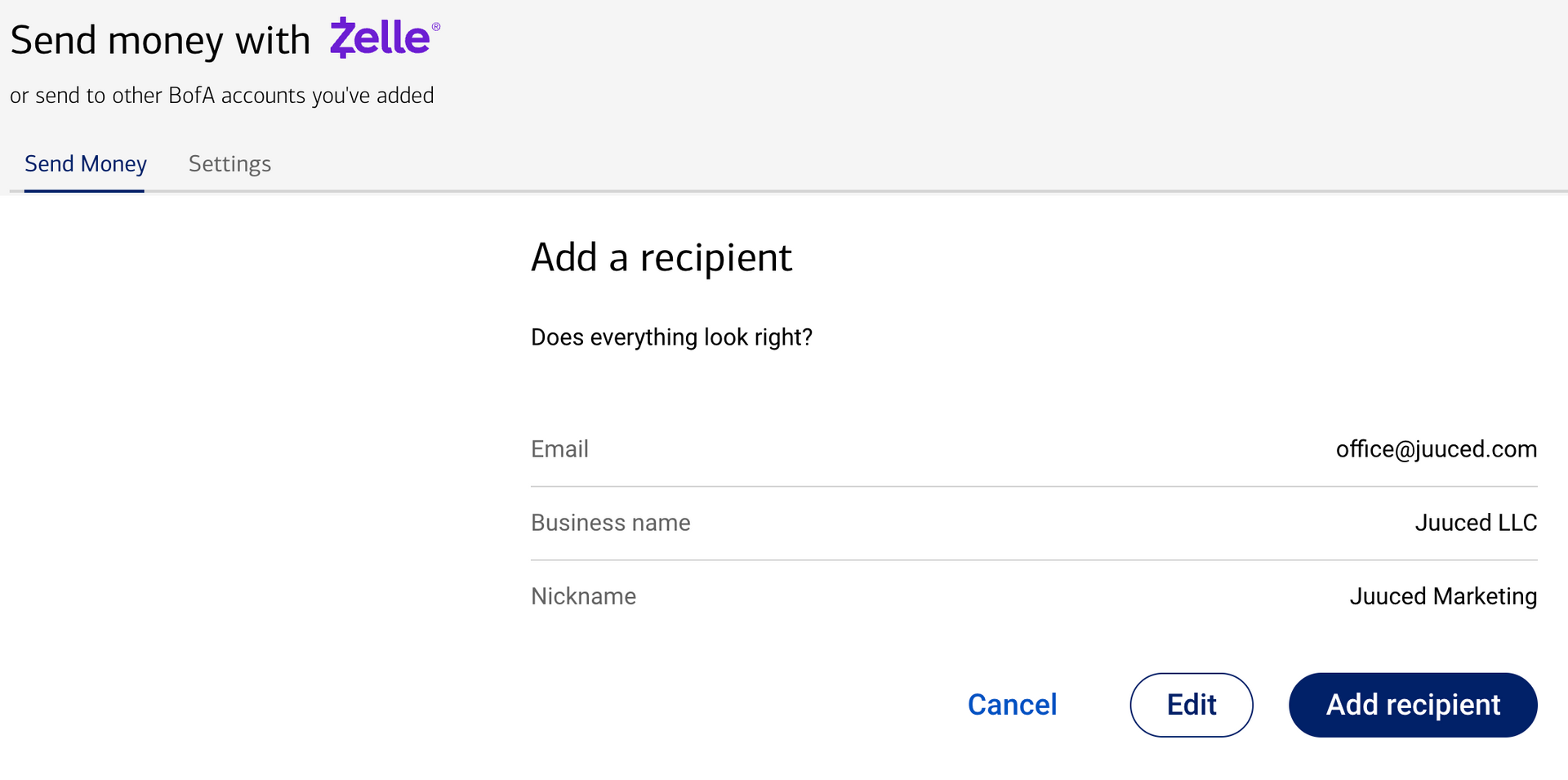
3.
Confirm Identity: Review the recipient information, and select "Add Recipient".
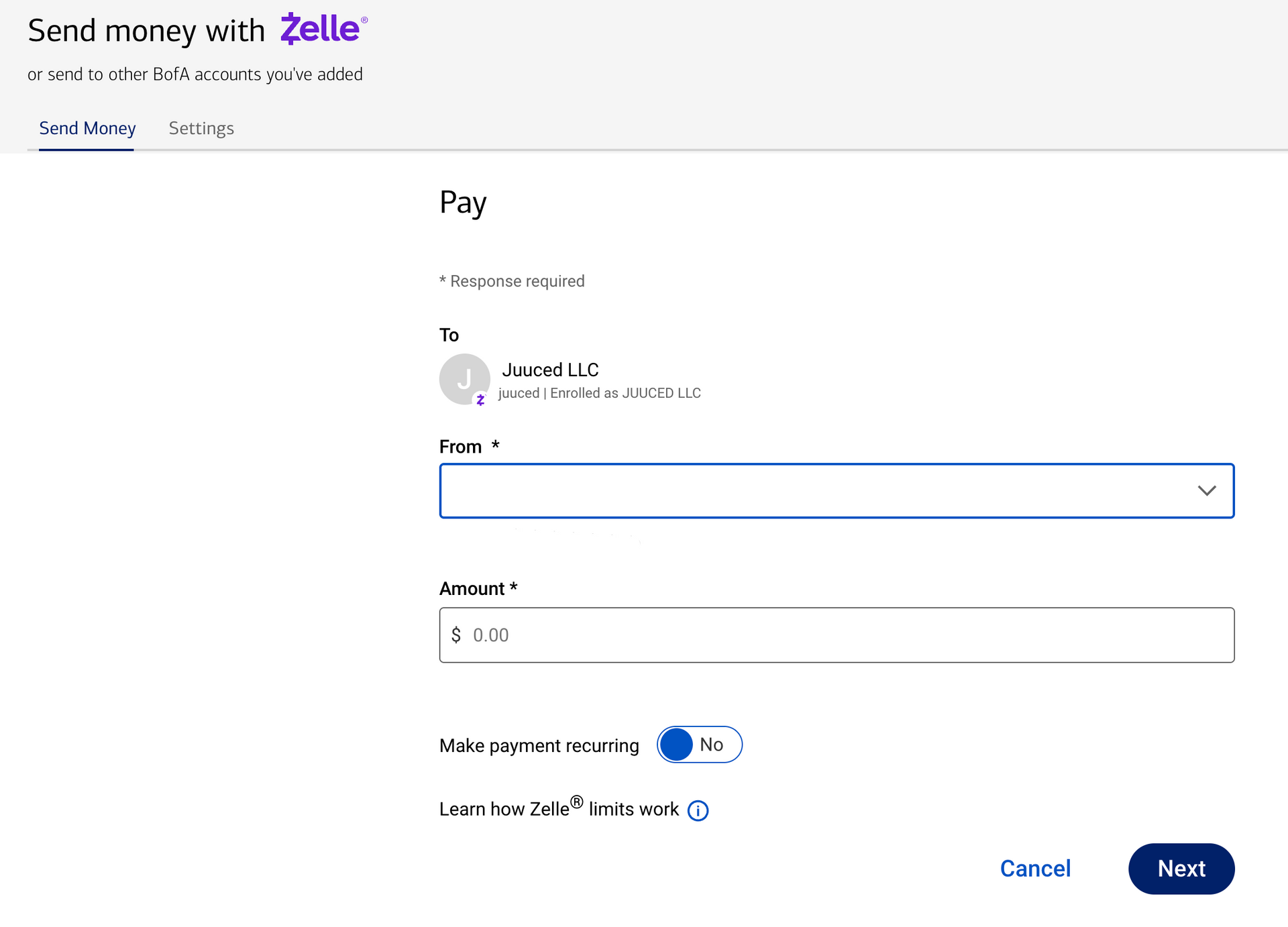
4. Select your account and enter the amount: Input the exact amount from your invoice.
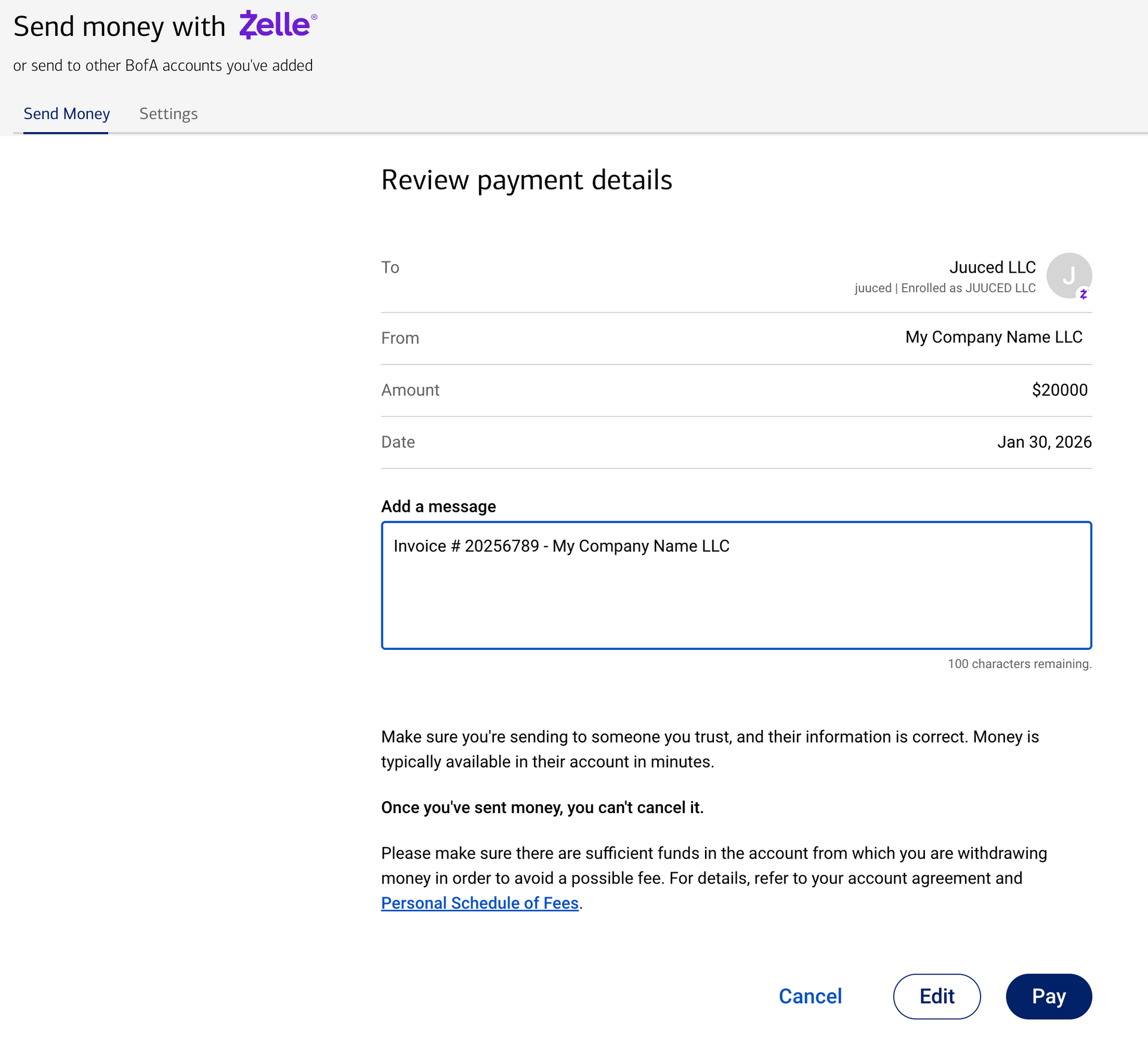
5. Important – Add a Memo: In the "Note" or "Memo" field, please type your Invoice Number & Company Name. This ensures your payment is credited to the correct project immediately.
6. Review & Send: Confirm the details and tap send. You will receive a confirmation email from your bank once the transfer is complete.
For more information about online payment terms and conditions please click here: TERMS OF SERVICE